How It Works
A quick, stress-free guide to setting up your environment and starting your assessment.
Welcome to Certify
Welcome! We are thrilled to have you here. In this quick tutorial, we'll walk you through exactly how to start your online assessment smoothly and without any technical hiccups.
Have a Webcam & Mic?
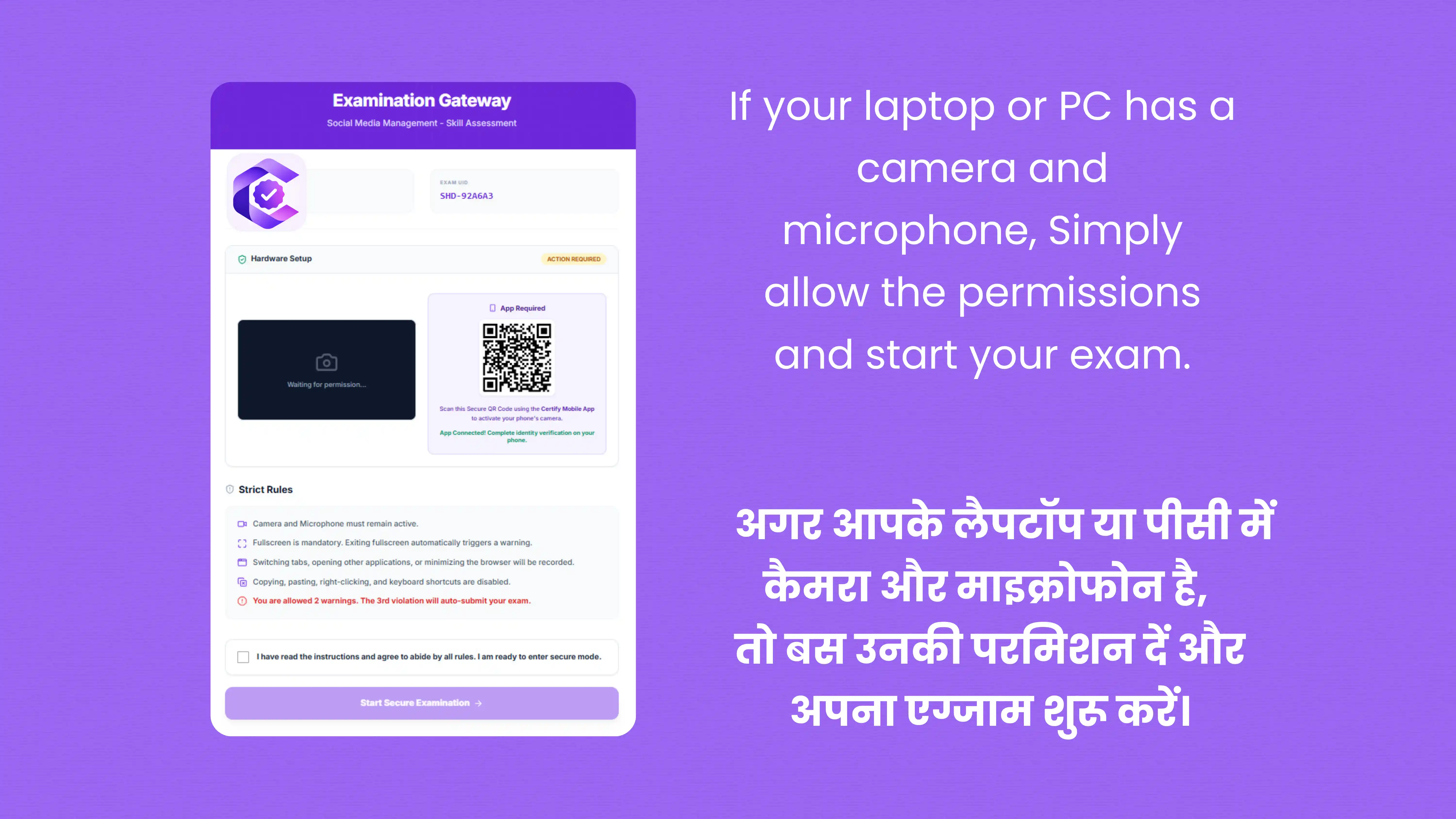
Let's check your setup first. If you are using a laptop or a PC that already has a built-in camera and microphone, you are practically ready to go!
Just Click Allow
Simply click "Allow" when your web browser asks for permission to access your camera and microphone. Once granted, you can start your exam instantly.
No Camera? No Problem!
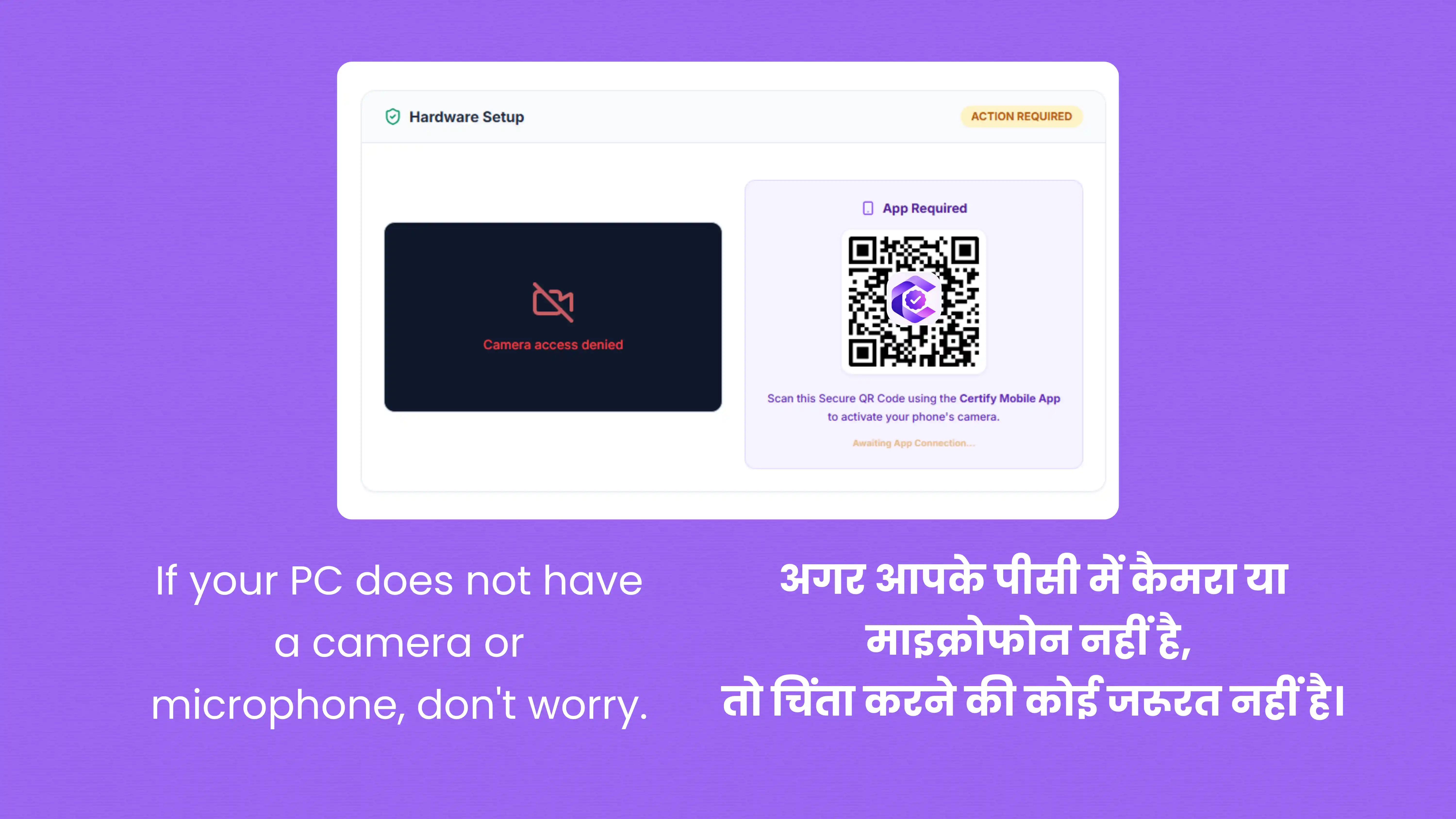
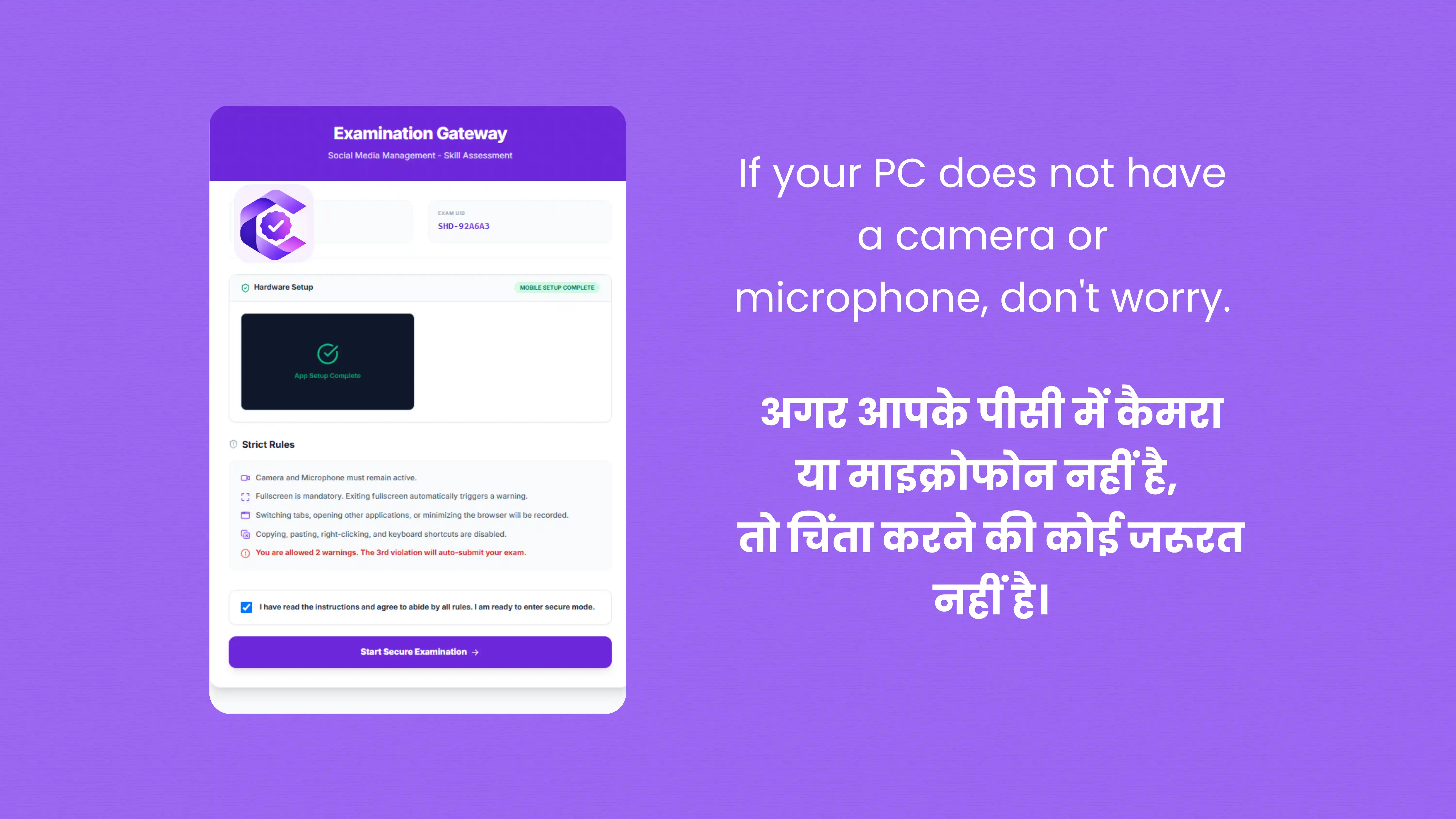
What if your desktop computer doesn't have a webcam or microphone? Don't worry at all. We have built a seamless solution so you don't need to buy extra hardware.
Get Your Mobile Ready
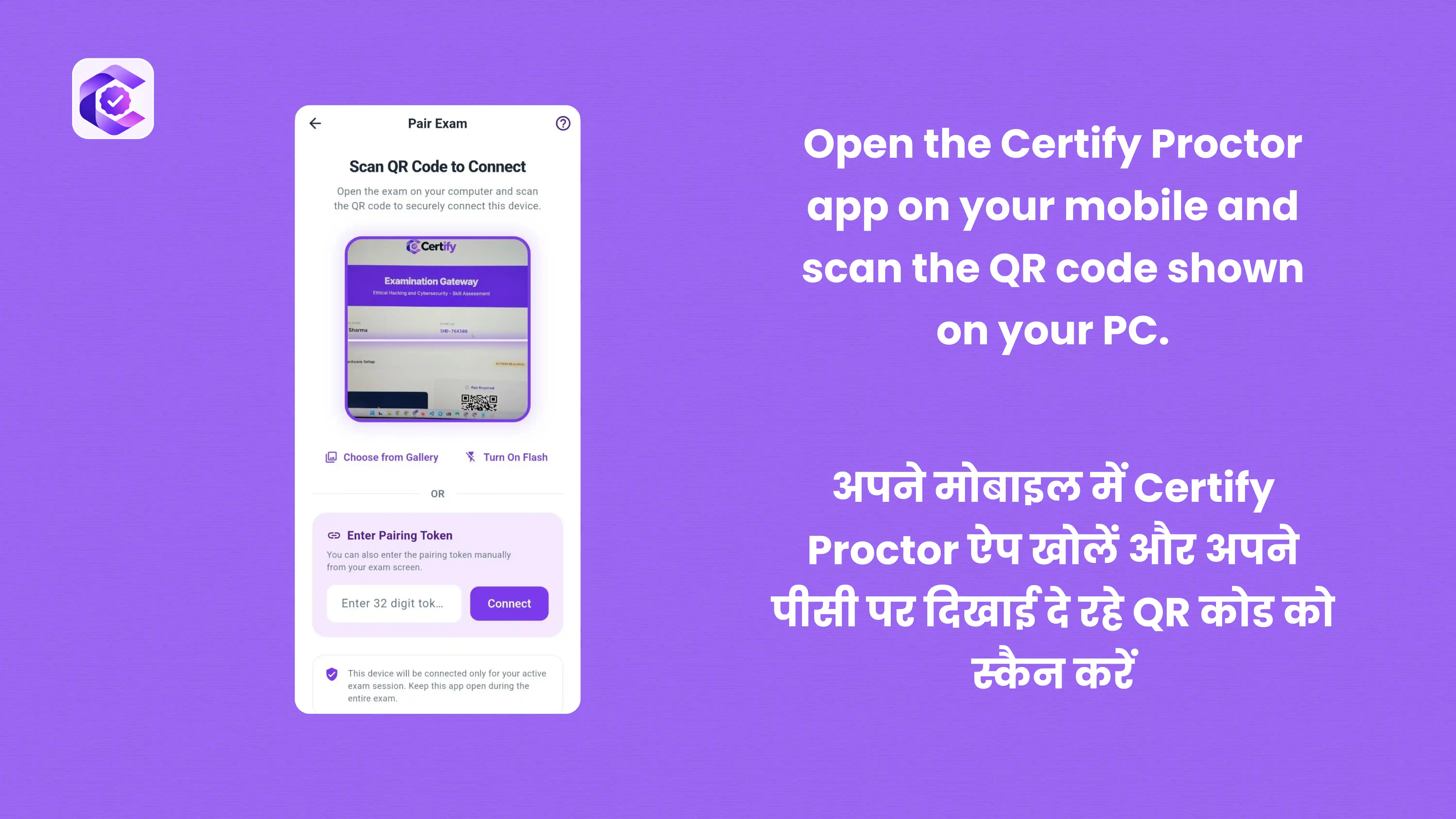
Grab your smartphone and open the Certify Proctor app. Keep your PC screen open to the assessment dashboard where your unique QR code is displayed.
Scan & Connect
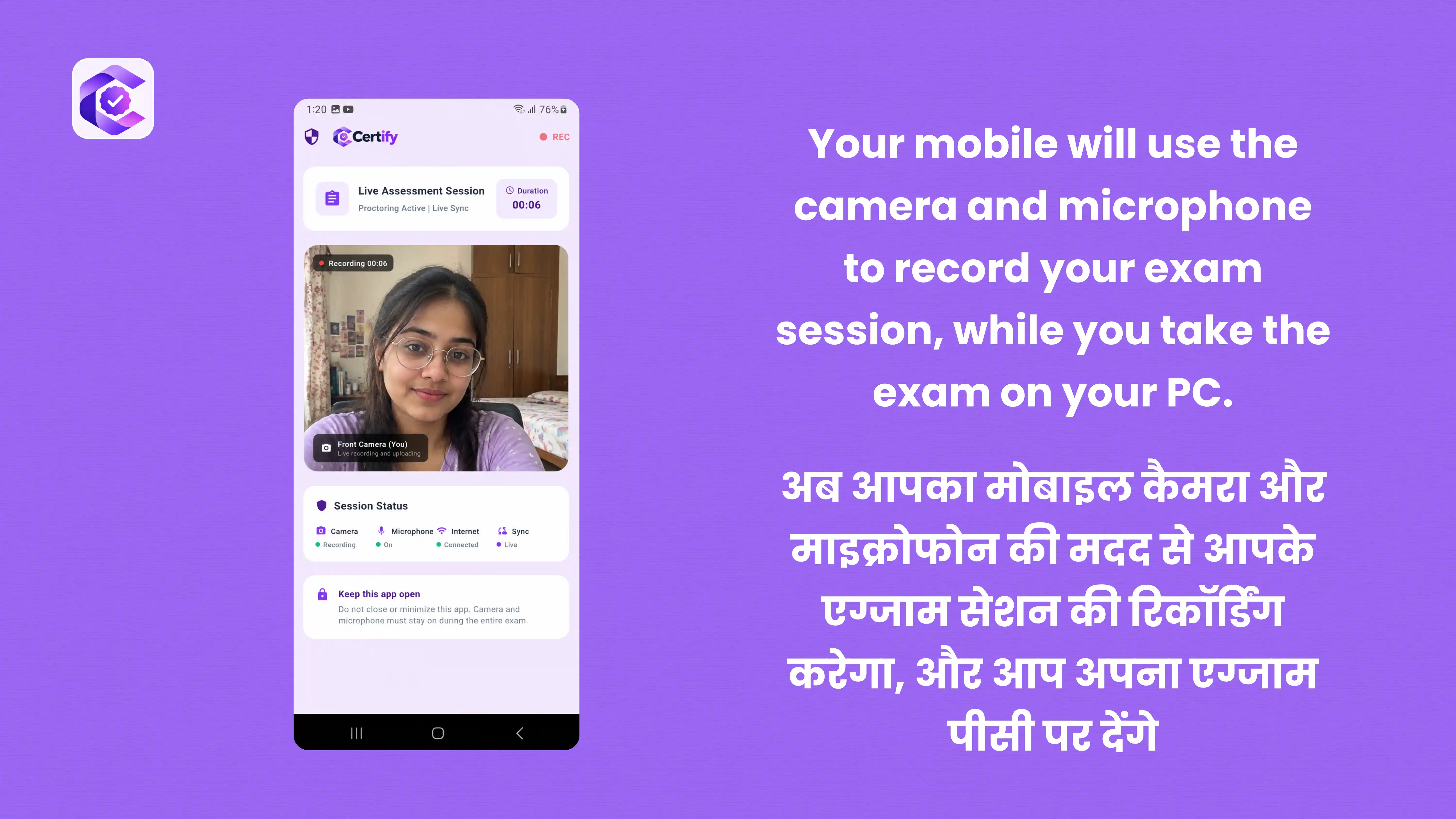
Using the app, simply scan the QR code shown on your PC screen. Magic happens! Your mobile phone will automatically link up to use its camera and microphone to securely record your session.
That's It!
With Certify Proctor, you can easily read and answer questions comfortably on your large PC screen, while your mobile handles the proctoring. Best of luck on your assessment!